
Discounts Report
Overview
The Discounts Report provides visibility into the discounts applied for dine-in guests (for POS customers), as well as discounts applied to ecommerce modules such as online orders and merchandise sales. The reports show helpful data about the discounts applied, as well as multiple ways to view the data. This helps your team understand how discounts impact gross sales, and allows you to track employee usage of discounts.
Accessing the Discounts Report
Navigate to Switch Location → Choose Location → Reports → Discounts Report in the side navigation. You’ll see the discount summary page first, with the current month as the default time frame. You can edit the date range, channel (POS, online ordering, etc.) and location from the drop downs at the top.
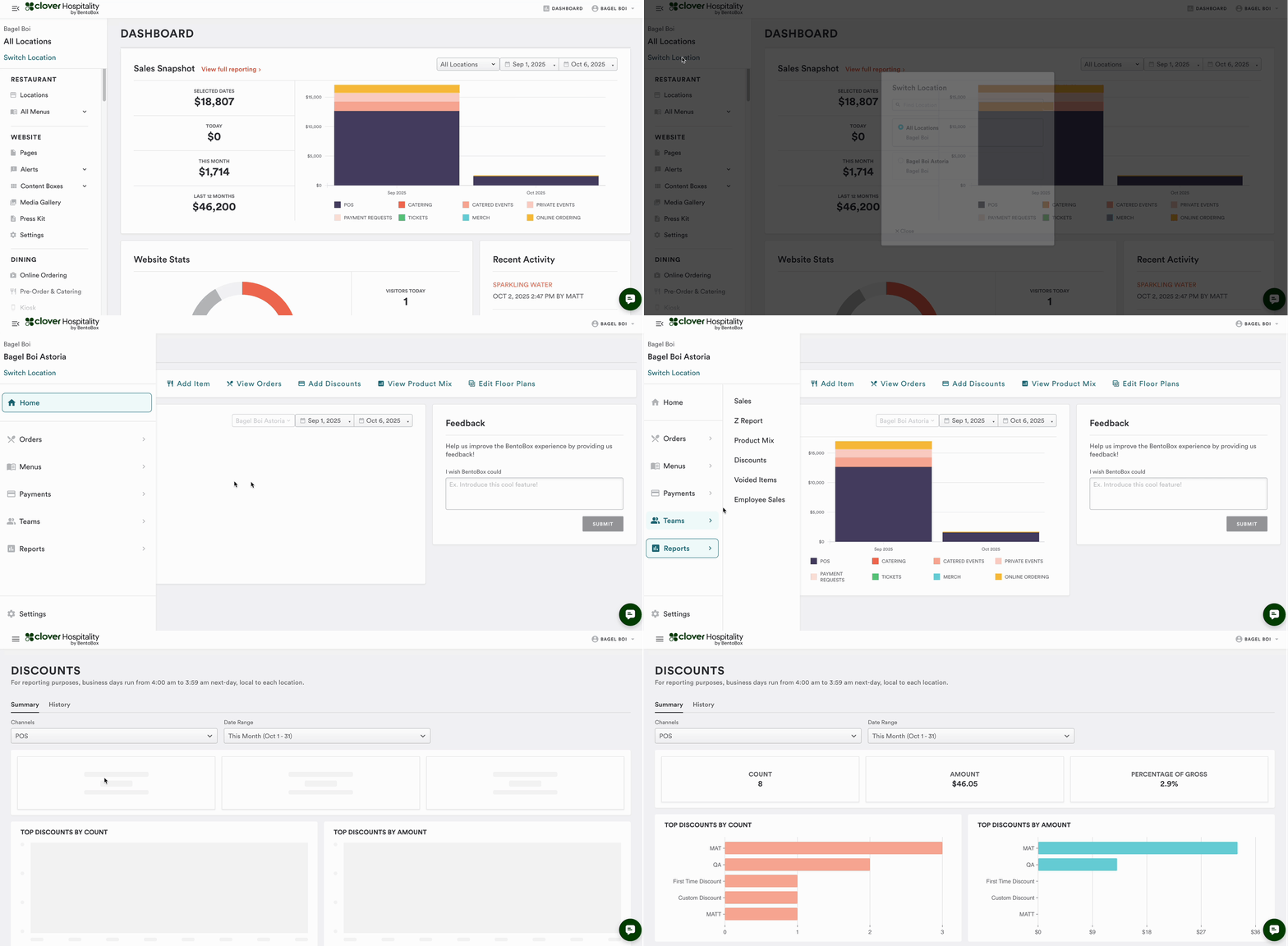
Understanding the Report Sections (Summary View)
Top Sections: Quick View
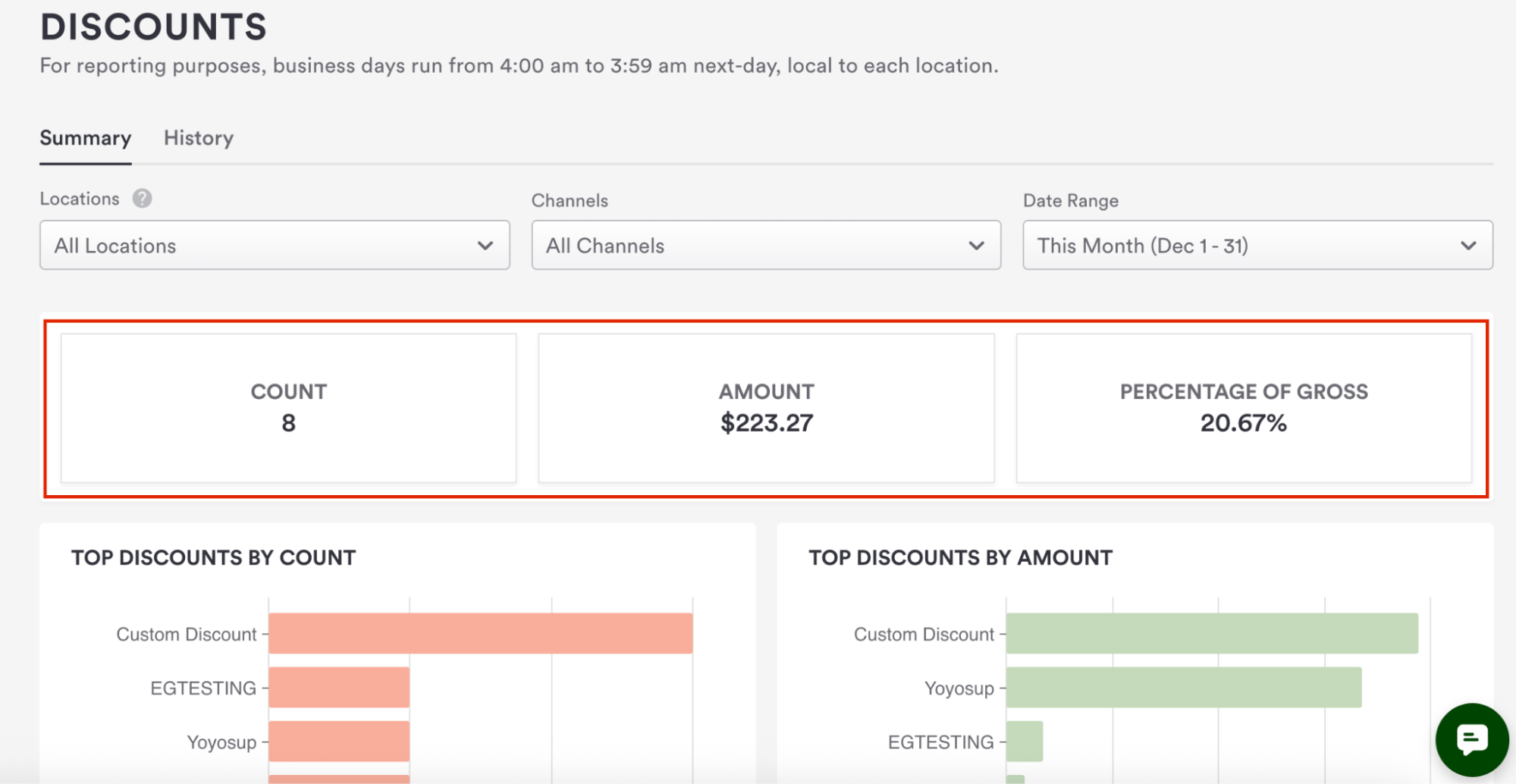
This panel shows a quick view of total discount uses, the amount discounted, and the amount discounted as a percentage of the gross sales.
Top Sections: Graphs
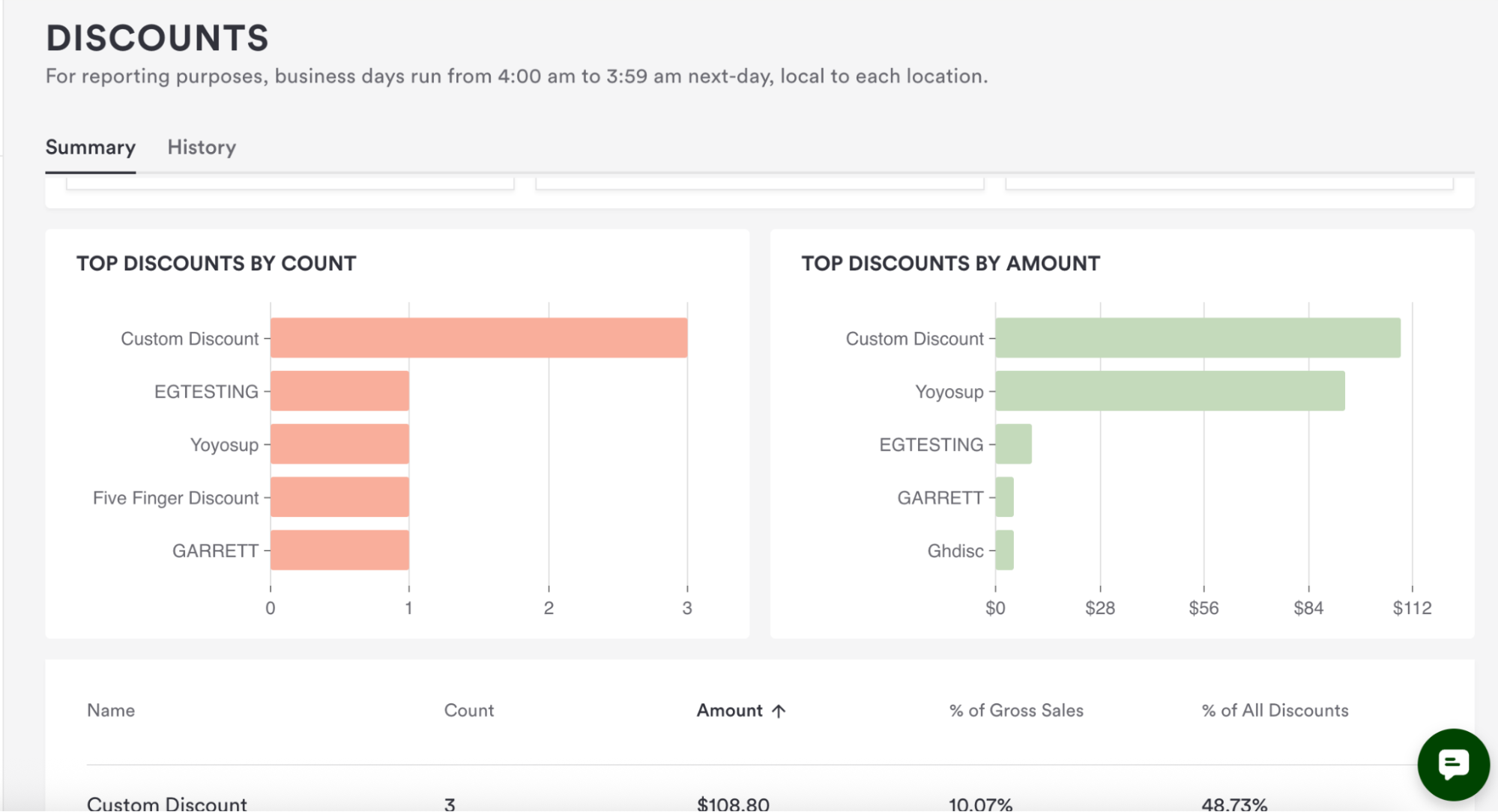
The quick view graphs visualize the top five highest discounts applied, both by number of times applied and by total dollar value applied. Hover over the bars to see exact values.
Summary Listings
Below the quick view graphs, you can view a list of all discounts along with the total number of times the discount was applied for the time frame, the total dollar value, the percentage of gross sales (discount amount divided by gross sales) and the percentage of all discounts (discount amount of a single discount divided by the total value of all discounts in the timeframe).
History Tab
Next to the summary tab on the top of the page is the history tab. This displays each use of the discount individually. You can take a closer look by clicking into each line item.
It includes the date and time the discount was applied, the discount name, dollar value of the discount, and two POS-only fields: the employee who applied the discount, and the approver who signed off on the discount’s application.
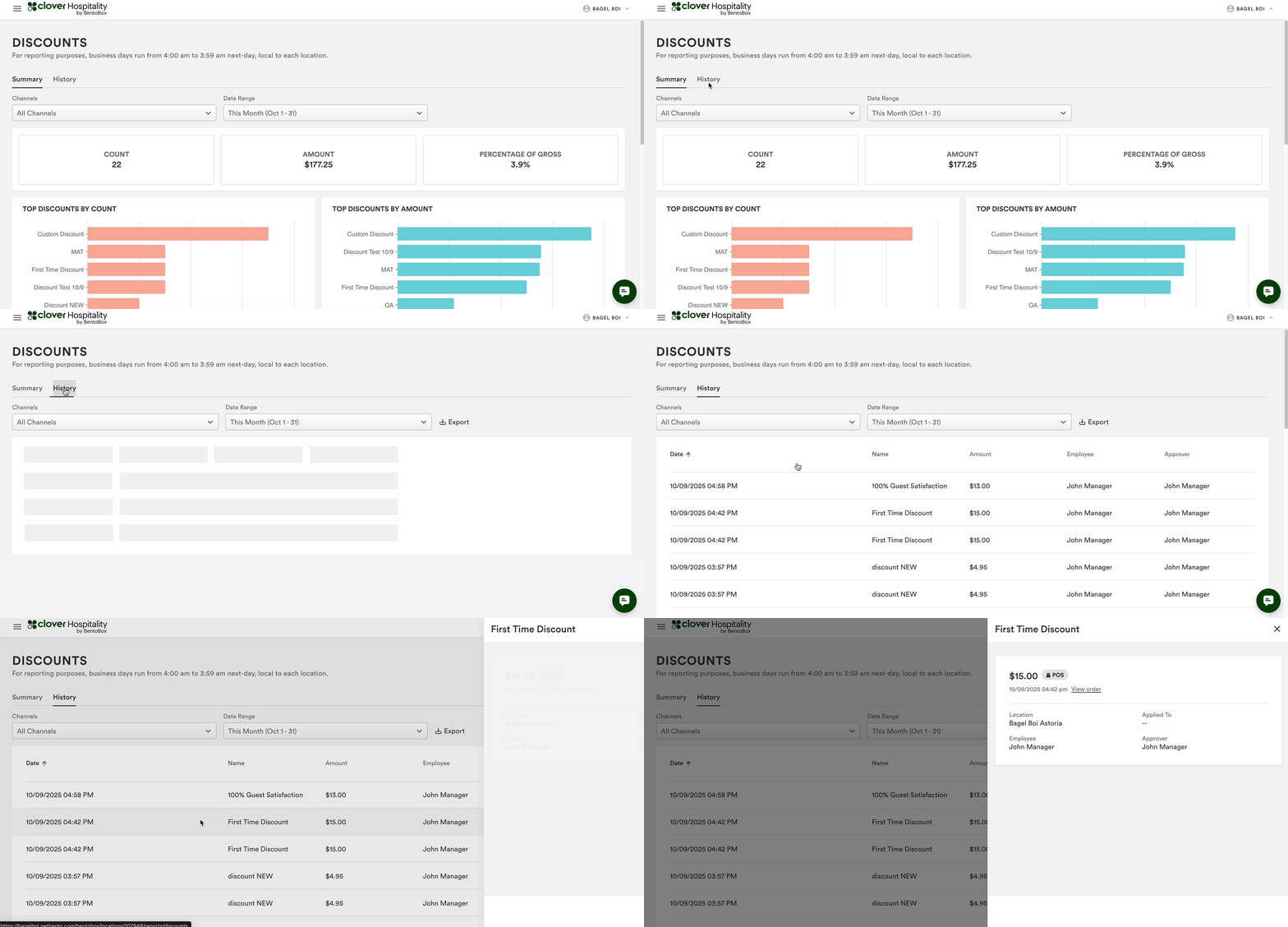
Clicking on the individual discount opens the discount drawer for details related to the check or ecommerce order it was applied to. You can click “view order” to view the full details of the order associated with the discount.
FAQ’s
Q: What does “% of Gross Sales” mean?
A: It shows how much of the gross sales were discounted during the selected timeframe.
Q: How do I know who applied a discount?
A: The report shows the employee who applied the discount or the PIN used for approval if the employee lacked permissions, for POS discounts only.
Q: Can I view the check or order where the discount was applied?
A: Yes. Click “View Order” to be redirected to the POS Orders page.
Q: Why are there “--” blanks surfacing in some columns in the report?
A: The “--” blank values will show on the report for a couple of reasons. The “Employee” and “Approver” sections only apply to POS users, so this will appear blank for any discounts applied on ecomm orders. The “Applied To” section will only populate for discounts applied on a POS check, specifically, and item-level discount.