
Discounts, Promo Codes, and Service Charges
Overview
This guide outlines how Discounts, Promo codes, and Service Charges are enabled in the dashboard and how they are applied on the POS.
Configuration in the Dashboard
Discounts and Service Charges
Navigate to the Location Sub navigation
Click Switch Locations in the upper left corner
Select the appropriate location
Go to Checkout Settings
Navigate to Settings → Checkout → and then choose either Discounts or Service Charges
Create a Discount
Click Add New
Enter Discount Name
Select the Discount Level (either an item level discount or check level)
Select Discount Type: Percentage or Dollar Amount
Enter Amount Off
Toggle Active to activate the Discount on the POS
Create a Service Charge
Click Add New
Enter Service Charge Name
Select Discount Type of Percentage or Dollar Amount
Enter the Amount and choose if it’s Taxed or Not Taxed.
Toggle Active to activate the Service Charge on the POS
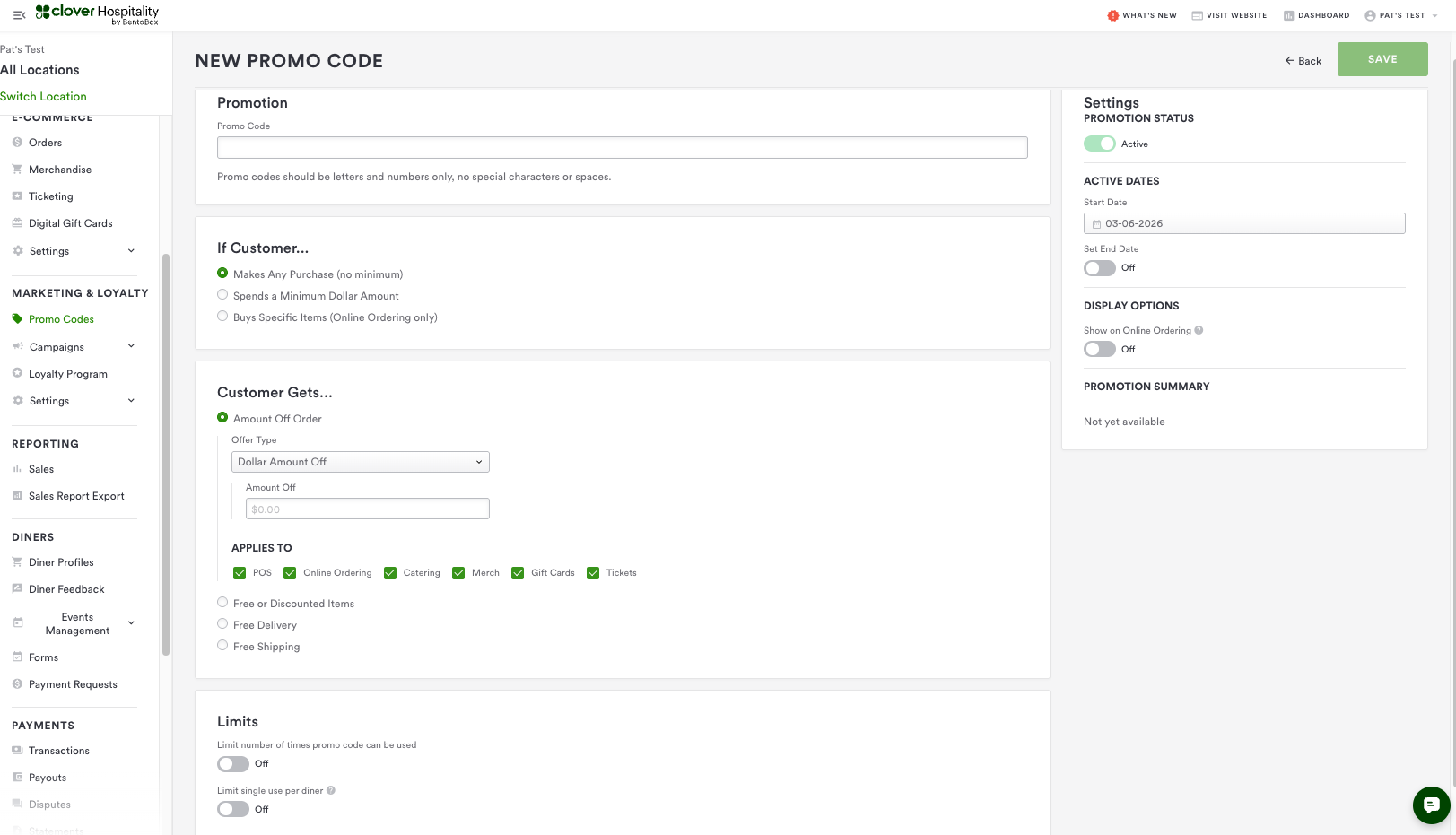
Promo Codes
Note that Promo Codes live in a different section of the dashboard.
Navigate to the Location Sub navigation
Click Switch Locations and choose All Locations
Navigate to Marketing & Loyalty on the left-hand side
Click on Promo Codes and choose Add New
Promo Codes have a variety of options that discounts and service fees do not, such as limiting the number of uses and activation dates. Make sure the Promotion Status in the top right-hand side is toggled to Active.
Applying Discounts, Promo Codes, and Service Charges to a Check
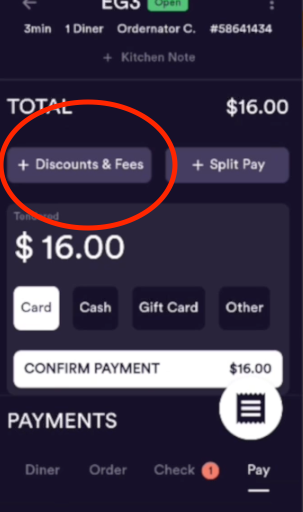
Navigate to the Pay Screen on an open check.
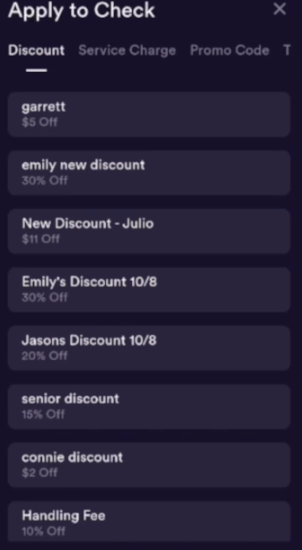
Tap the appropriate button for either + Discounts & Fees, Service Charge, or Promo Code.
Then, select whichever one you’d like to apply to the check.
To apply promo codes you will need to key in the code to apply to check
FAQs – Discounts & Service Charges
Q: Can discounts be applied to individual items?
A: Yes, item-level discounts can be applied using the swipe feature on the Pay Screen.
Q: Can a discount be applied to the entire check?
A: Yes, check-level discounts can be applied using the Apply button.
Q: Can discounts be removed after being applied?
A: Yes, they can be removed by tapping the X next to the applied label.
Q: Can service charges be applied to individual items?
A: No, service charges can only be applied at the check level.
Q: Can service charges be taxed?
A: Yes, service charges can have tax rates applied based on whether the Service Charge Tax is set to Taxed or Not Taxed when configuring the service charge.
Q: Can discounts and service charges be removed after being applied?
A: Yes, both can be removed by tapping the X next to the applied label.
Limitations
Discounts must be created and marked active in the Dashboard to be available in the POS.
Service charges cannot be applied at the item level.
Service charges must also be marked active to appear in the POS.
Tax behavior for service charges depends on the selected tax rate configuration