
On-Premise Loyalty Accrual
Overview
Clover Hospitality by BentoBox provides a seamless loyalty experience for your dine-in customers. Depending on the loyalty settings in the Clover Hospitality backend, your guests can both make progress toward their reward through on-premise purchases, and apply existing rewards to their check.
Diner and Loyalty Settings in the Clover Hospitality Backend
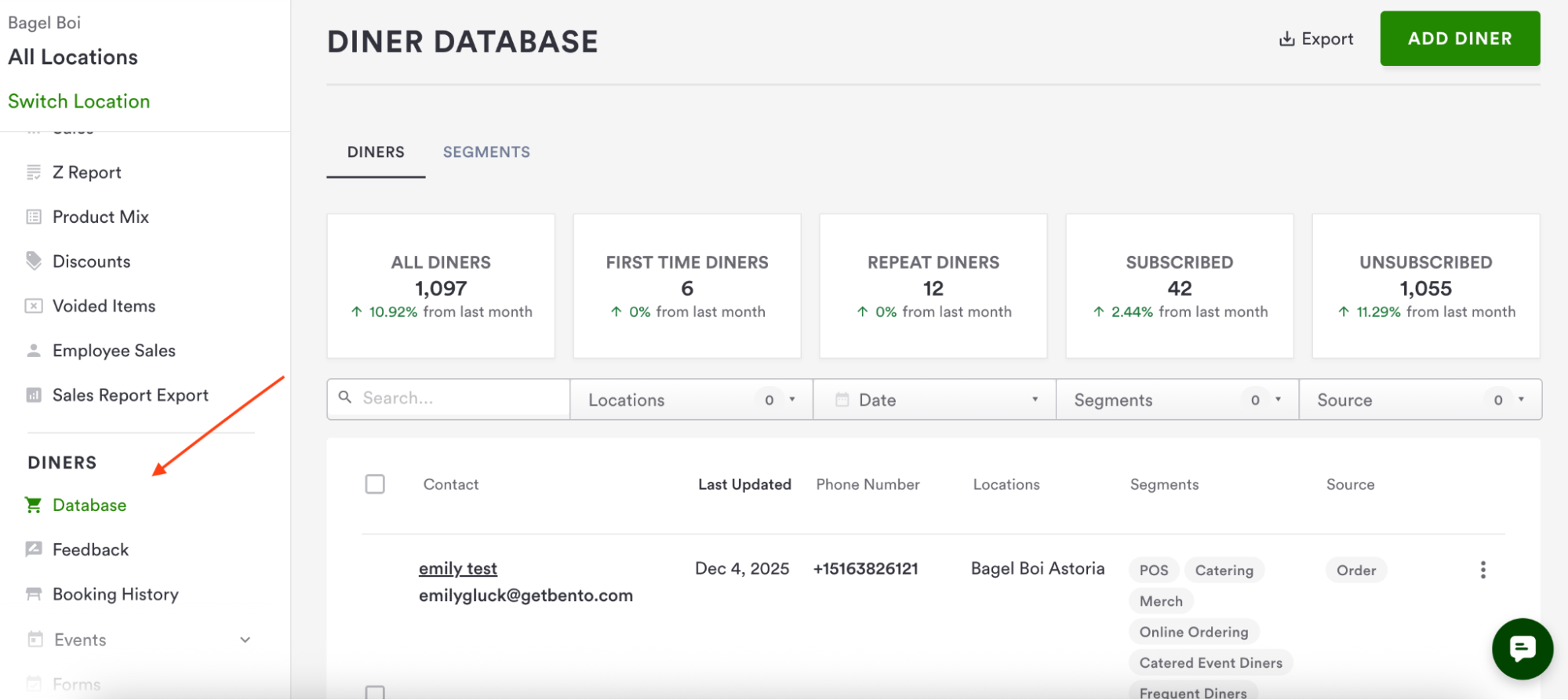
The POS will recognize diners that exist in the diner database in the Clover Hospitality backend. This section can be found on the main dashboard screen by scrolling to the “Diners” category and selecting “Diner Database.” Diners are added automatically via multiple methods: when they enter their information for a POS check, order online with Clover Hospitality e-commerce stores, make a Clover Hospitality reservation, or submit forms on your Clover Hospitality website. You can add diners as well, either individually or via bulk upload.
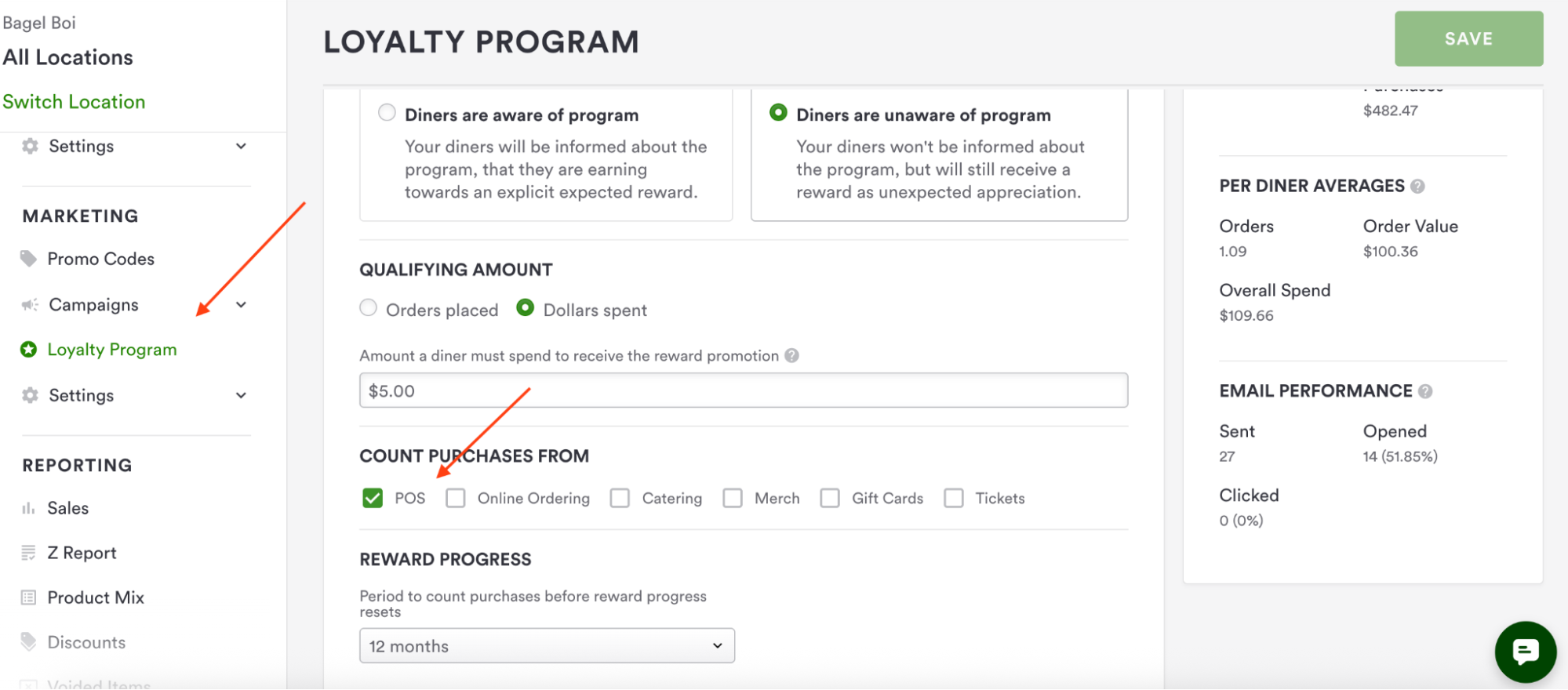
Loyalty settings can be accessed via the Marketing section. Here, you can set up a single loyalty program and apply it to as many products you like. You can make dollar-off, percentage-off, discounted item, and free item loyalty rewards. The POS box must be checked for diners to accumulate and use rewards on-premise. Read more about setting up the loyalty program here.
Assigning an On-Premise Diner
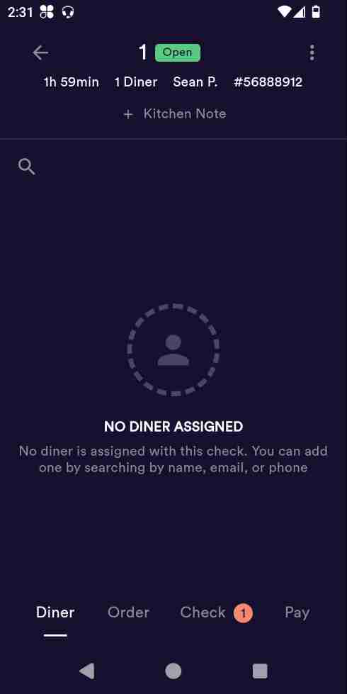
With a loyalty program set up, and existing diners in the database, you are ready to use on-premise loyalty. After starting a check, navigate to the Diner tab to assign a diner from the database. Tap the magnifying glass icon to search by name, email, or guest phone number. You cannot create a new diner on this screen, that will happen automatically once a check is closed and the customer has entered their information.
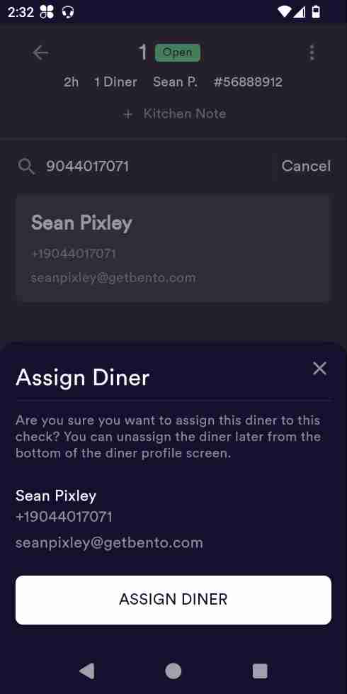
Once a diner is found, you can confirm their information before assignment. You can only assign one diner to a table/check at a time.
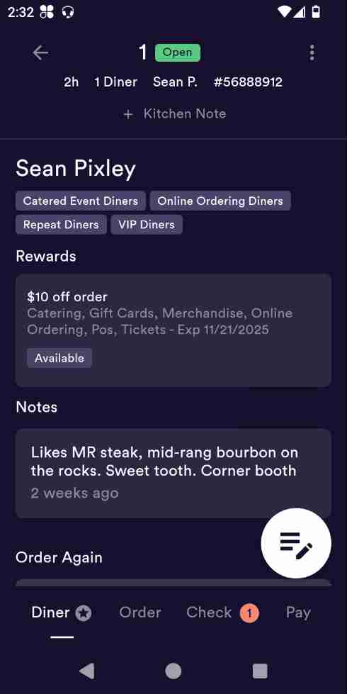
Once assigned, the diner profile will appear with customer information taken directly from their diner database profile. Right below their name, you’ll see the diner segments they belong to – such as diners who have ordered online, diners who tip well, VIP diners, etc. These segments are applied automatically based on their prior activity with your restaurant, and custom segments are available as well with our website customization plan.
Below the segments, you’ll see any rewards a customer has accrued along with a description, what medium it is applicable to, and an expiration date. Rewards can be applied by swiping from right to left on the reward.
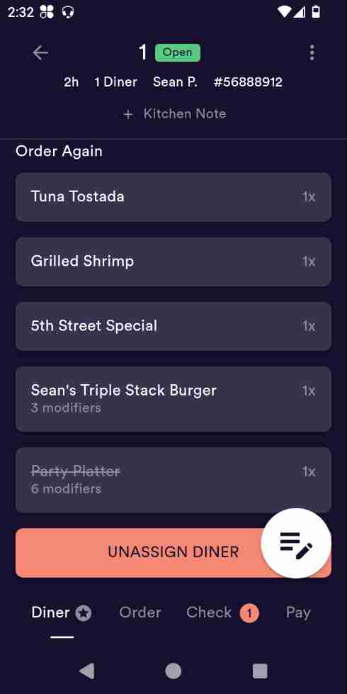
Below rewards are the customer notes added by the staff, via the reservations platform or the notes section of the diner database profile. The “order again” section below shows the customer’s order history, an easy way to quickly reorder favorite items.
The “Order Again” view, along with the option to unassign a diner if desired.
With a diner assigned, you can easily swipe to add their loyalty reward, and their on-premise purchases will count toward their reward accrual (as long as the POS box is checked in the loyalty settings!).